


Related Technologies
Azure OpenAI
Microsoft Purview
MCP Agent Protocol
Azure Model Service
Azure AI Foundry
Microsoft Graph
Azure Data
OneLake
Related Technologies
Microsoft 365
Microsoft 365 Teams and Teams Phone
Microsoft 365 Mobility and Security
Microsoft Azure
Microsoft Entra ID
Microsoft Security
Related Technologies
NovaFlow BPM Engine
Microsoft Dynamics 365 Business Central
Microsoft Dynamics 365 CRM
Microsoft Power Apps
Microsoft Power Automate
Microsoft Power BI
Related technologies
NovaTech Service Center
NovaTech Support Team
ITIL Maintenance Tools
Contact us
Support Hotline:400-902-9162
Company phone:021-22065380
Shanghai Office: Room 1506, Yuexiu Building, No. 388 Fushan Road, Pudong, Shanghai
Suzhou Office: Room 301, Yuanyuzhou Industrial Application Center, Yushan Town, Kunshan
Follow NovaTech

Starting from Business and Practice: Experiencing Copilot’s Value Together with Customers
Events/Sharing Sessions
Starting from Business and Practice: Experiencing Copilot’s Value Together with Customers
OnSeptember15,2026,thesecondMicrosoftCopilotEnterpriseAIEmpowermentWorkshopconcludedsuccessfully.Overthefour-hoursession,hands-onpracticeaccountedfor60%ofthecurriculum.Participantsworkedthroughfourpro...
2026.09.17
Important Notice! Copilot is Now Free to Use!
Important Notice! Copilot is Now Free to Use!
21
2025-11-21

For overseas enterprise customers with a Microsoft 365 Standard (or above) license,
Copilot Chat is now available at no extra cost—no need to purchase an additional Microsoft 365 Copilot license.
Feel free to inquire!
What is Copilot Chat? How is it Different?
- ∙∙
Enterprise-grade data security: Your conversations remain private and are not used to train public AI models. - ∙∙
Deep integration with work scenarios: Upload Word, PPT, or Excel files to get context-aware responses. Generate images and data visualizations, or connect to SharePoint and internal sites. - ∙∙
Multi-platform access: Use it on the web at M365Copilot.com, via the “Microsoft 365 Copilot” mobile app, or within Teams, Outlook, and Edge.
3 Steps to Get Started
-
1.
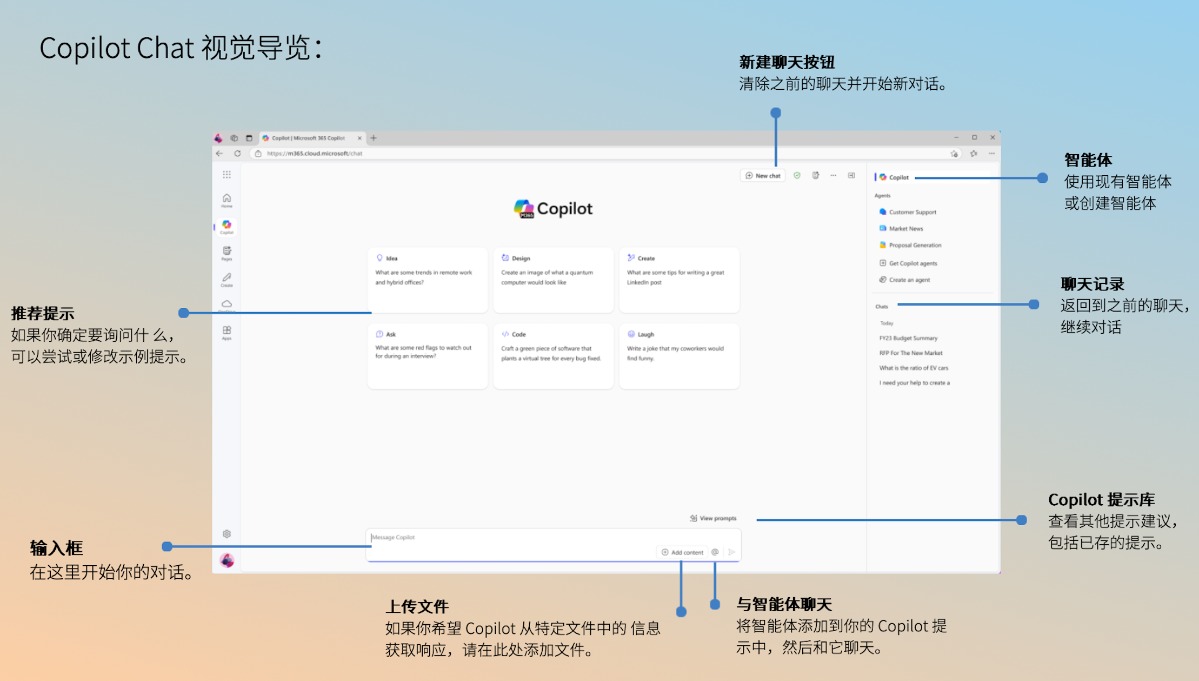
1. Login: Look for "Work Account + Green Shield"
Open your browser and visit M365Copilot.com. **You must log in with a work or school account**! After successful login, the "Microsoft 365 Copilot" icon will appear at the top of the page, and a green shield (enterprise data-protected version) will be displayed next to "New Chat".2. Core Operation: 3 Steps for an Efficient Conversation
① **Input precise prompts**: Enter your request in the text box at the bottom. Need a response based on a file? Click "Add content" to upload documents. For example, instead of the vague "Summarize the document", use "Summarize this product plan into 5 key points "—it’s 10x more efficient!② **Verify information sources**: Copilot lists sources below its answers. Always confirm source authenticity to avoid AI "providing plausible but incorrect information".③ **Refine the conversation**: Want a shorter answer? Say "Provide a more concise version". Need more details? Ask "Explain the technical parameters of the new product line". You can also use the "Recommended prompts" on the page for inspiration.3. Tips for Writing Effective Prompts: Don’t Make AI "Guess"
Remember the three principles: **Specific, Detailed, Context-rich**.❌ Ineffective: "Summarize news about Company A" (vague and directionless)✅ More Effective: "I work in marketing, focusing on competitor research. Please summarize Company A’s latest updates, with emphasis on new product line announcements, presented in 2-3 paragraphs in a business tone" (clear identity, focus, and format)Stuck on writing prompts? Click "View prompts" in the input box to see recommended examples. You can also visit aka.ms/Prompts to filter industry-specific prompts, save frequently used templates, and share your "high-efficiency prompts" with colleagues.
Advanced Feature: Copilot Agents
- ∙∙
Ready-to-use templates: Access agents for writing assistance, career coaching, or learning. - ∙∙
Custom agents: Connect to your SharePoint site to create agents that retrieve project files, screen candidates, or review contracts.

